
Download WriteRoom – Distraction‑Free Writing Software for Windows, macOS, iOS & Android
Overview
WriteRoom is a minimalist, distraction‑free writing environment that strips away every non‑essential element so you can focus solely on the act of writing. In a world saturated with notifications, social‑media alerts, and multi‑tasking temptations, WriteRoom recreates the quiet of a classic typewriter desk—only it runs on modern operating systems. The default interface mimics the retro look of early computer terminals with green text on a black background, but you can fully customize colors, fonts, and spacing through an intuitive eyedropper tool.
While the program deliberately avoids the “bells and whistles” of heavyweight word processors like Microsoft Word, it still offers essential utilities such as word count, auto‑save, spell checking, and flexible scrolling options. Whether you are a novelist, journalist, academic, or blogger, WriteRoom provides a clean canvas where words flow uninterrupted. Its thin footprint means it loads instantly, consumes minimal RAM, and stays out of the way of Dock icons, Growl alerts, or email pop‑ups.
In short, WriteRoom is the digital equivalent of a quiet study carrel—designed for writers who value concentration over feature bloat.
Key Features & Customization Options
- Ultra‑Minimalist Interface: No toolbars, menus, or side panels—just a full‑screen writing space.
- Customizable Theme: Choose from preset dark, light, or retro themes, or create your own palette using the built‑in eyedropper.
- Full‑Screen Mode: Hides Dock, taskbar, and system notifications for a truly immersive experience.
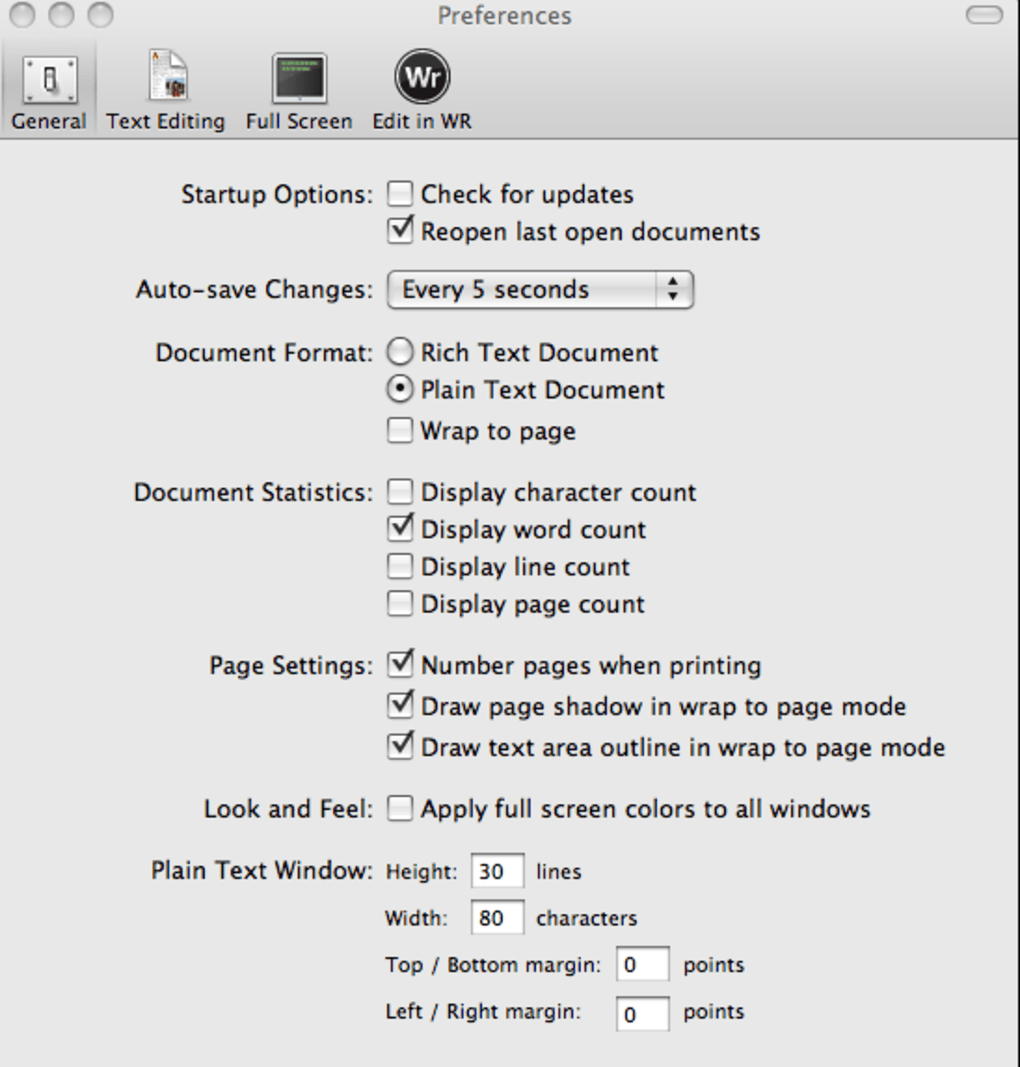
- Auto‑Save & Backup: Writes your document to a hidden temporary file every few seconds, preventing data loss.
- Word Count & Statistics: Real‑time tracking of words, characters, and reading time.
- Spell Checking: Integrated dictionary that underlines misspelled words without intrusive pop‑ups.
- Scrolling Tweaks: Adjust scroll speed, smooth scrolling, and mouse wheel behavior to match your typing rhythm.
- Font & Size Control: Load any system font, adjust line spacing, and set paragraph indentation for a personalized look.
- Multi‑Platform Support: Available for macOS, Windows, iOS, and Android, syncing preferences via cloud storage.
- Lightweight Performance: Uses less than 30 MB of RAM, ideal for older machines or low‑power laptops.
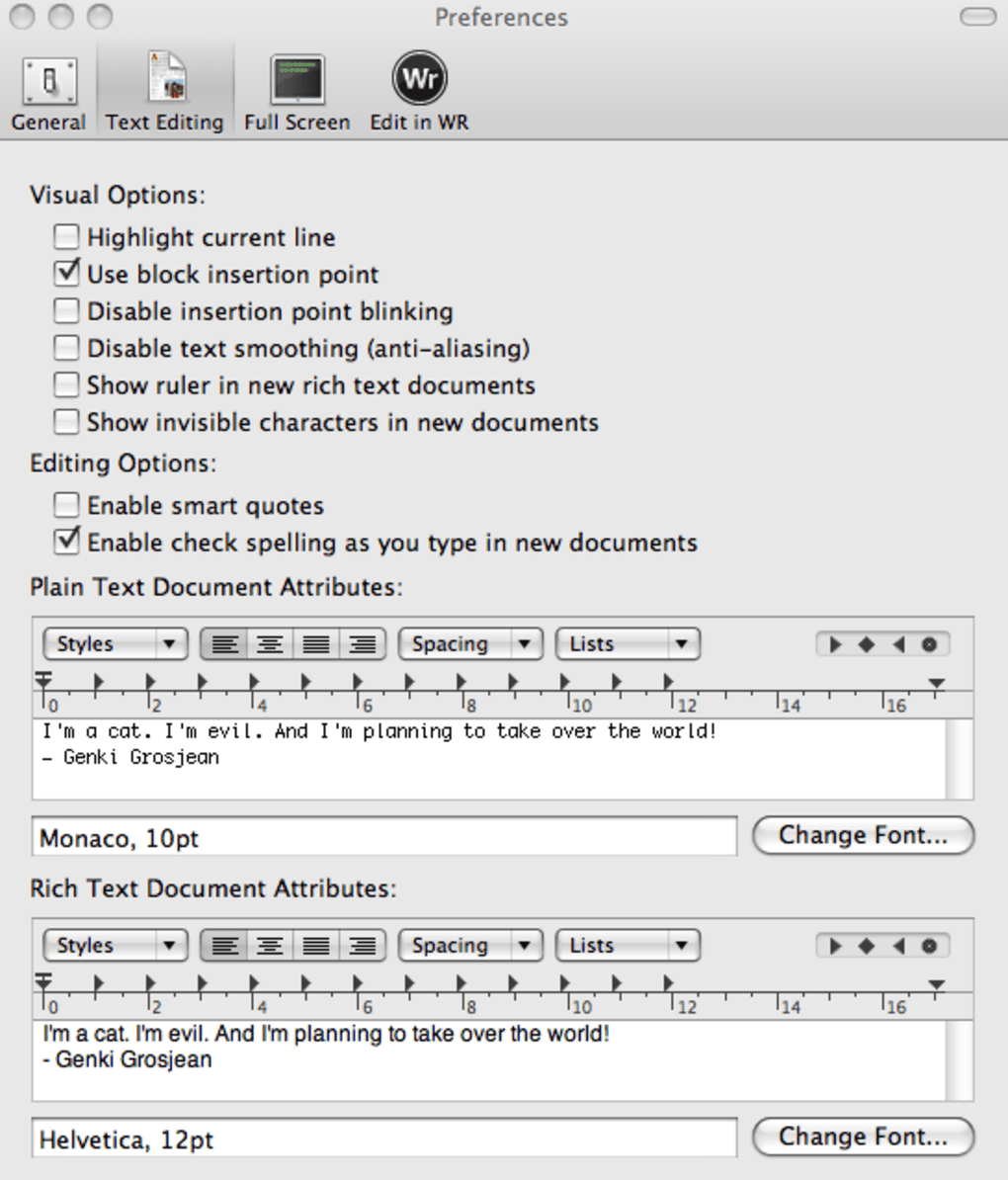
Beyond the listed features, WriteRoom offers subtle tweaks that power users appreciate. For instance, you can enable “typewriter scrolling,” which keeps the current line centered on the screen, emulating the feel of a mechanical typewriter carriage. The program also supports plain‑text, RTF, and Markdown export, giving you flexibility when moving drafts into more robust publishing tools. Although it lacks advanced formatting options like tables of contents or embedded graphics, the deliberate omission keeps the interface uncluttered, reinforcing the core promise: a pure writing experience.
Installation, Usage Instructions & Compatibility
Downloading and Installing WriteRoom
Getting started with WriteRoom is straightforward. Visit the official website and click the “Download” button that matches your operating system. For Windows users, an installer (.exe) will guide you through a standard setup wizard—accept the license agreement, choose an installation folder (the default is usually fine), and click “Install.” macOS users receive a .dmg file; simply drag the WriteRoom icon into the Applications folder. Mobile users can find WriteRoom in the Apple App Store or Google Play Store; tap “Install” and wait for the app to download.
First‑Run Configuration
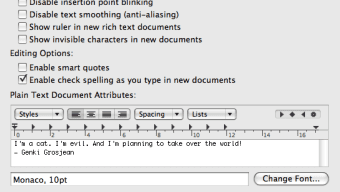
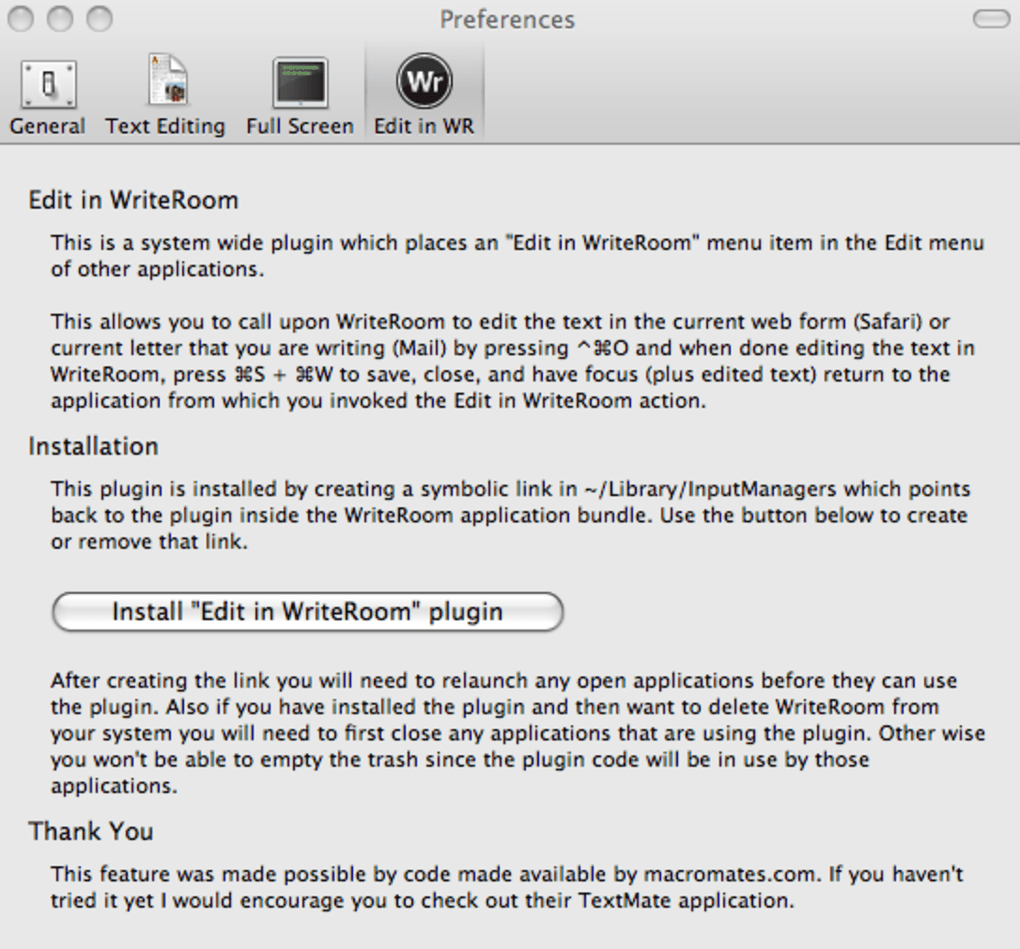
Upon launching WriteRoom for the first time, you’ll be greeted by the default dark theme. A quick “Welcome Tour” popup offers three optional steps: selecting a theme, setting a default font, and enabling auto‑save intervals. You can skip this tour and dive straight into writing, or explore the Settings panel (accessed via the gear icon in the top‑right corner) to fine‑tune preferences. The Settings panel is organized into tabs—Appearance, Editing, and System—making it easy to locate options like “Typewriter Scrolling” or “Spell‑Check Language.” All changes are saved instantly, and you can reset to factory defaults with a single click if needed.
Using WriteRoom Effectively
WriteRoom’s core workflow is intentionally simple. Open a new document, start typing, and let the auto‑save feature protect your work. The word count appears at the bottom left corner, updating live as you type.
If you need to pause, press Esc to bring up a minimal menu where you can open a recent file, export the current draft, or toggle full‑screen mode. For longer writing sessions, enable the “Night Mode” schedule, which automatically dims the screen after a specified hour, reducing eye strain. Export options include plain text (.txt), Rich Text Format (.rtf), and Markdown (.md), allowing seamless migration to other editors for final formatting.
System Requirements & Compatibility
WriteRoom runs on the following platforms:
- macOS 10.13 (High Sierra) or later
- Windows 7, 8, 10, and 11 (64‑bit)
- iOS 13 or later (iPhone & iPad)
- Android 8.0 (Oreo) or later
The application requires a minimum of 256 MB RAM and 50 MB of free disk space. Because it is built with native UI frameworks (Cocoa for macOS, Win32 for Windows, SwiftUI for iOS, and Kotlin for Android), performance is smooth across both old and new hardware. WriteRoom also integrates with cloud services like iCloud, Dropbox, and Google Drive for automatic backup, but this feature is optional and can be disabled for maximum privacy.
Pros, Cons & Frequently Asked Questions
Pros
- Truly distraction‑free environment that hides system notifications.
- Highly customizable themes and fonts without overwhelming options.
- Lightweight and fast; ideal for low‑spec computers.
- Auto‑save and backup prevent accidental data loss.
- Cross‑platform availability ensures a consistent experience.
- Supports plain‑text, RTF, and Markdown export for flexible workflow.
Cons
- Lacks advanced formatting tools (tables, footnotes, automatic TOC).
- No collaboration or real‑time sharing features.
- Spell‑check language packs may need manual download for less common languages.
- Limited plug‑in ecosystem compared to larger word processors.
- Mobile version has fewer customization options than desktop.
FAQ
Is WriteRoom completely free?
WriteRoom offers a free basic version with all core distraction‑free features. A premium license unlocks cloud sync, additional theme packs, and priority support for a one‑time fee.
Can I import existing documents into WriteRoom?
Yes. WriteRoom supports opening plain‑text (.txt), Rich Text Format (.rtf), and Markdown (.md) files. Simply choose “Open” from the menu and select your file.
How does auto‑save work, and where are backups stored?
Auto‑save writes a hidden temporary file to your system’s application data folder every few seconds. Backups can be exported manually or synced to cloud services if you enable that option in Settings.
Is there a dark mode for the mobile app?
Yes, the mobile app respects the device’s system theme and also offers a manual toggle in the Settings menu.
Can I customize keyboard shortcuts?
Keyboard shortcuts are fixed to maintain simplicity, but the most common actions (new file, export, toggle full‑screen) are accessible via intuitive default keys.
Conclusion & Call to Action
In an age where every app vies for attention, WriteRoom stands out by doing the opposite—it removes the noise and lets words take center stage. Its retro‑inspired aesthetic, combined with modern customization and cross‑platform support, makes it a solid choice for writers who value concentration over feature overload. While power users may miss collaborative tools and complex formatting, the core promise of a clean, fast, and secure writing environment is fulfilled without compromise. If you’re ready to reclaim your focus and write in a space that feels both nostalgic and cutting‑edge, download WriteRoom today and experience the tranquility of distraction‑free composition.







